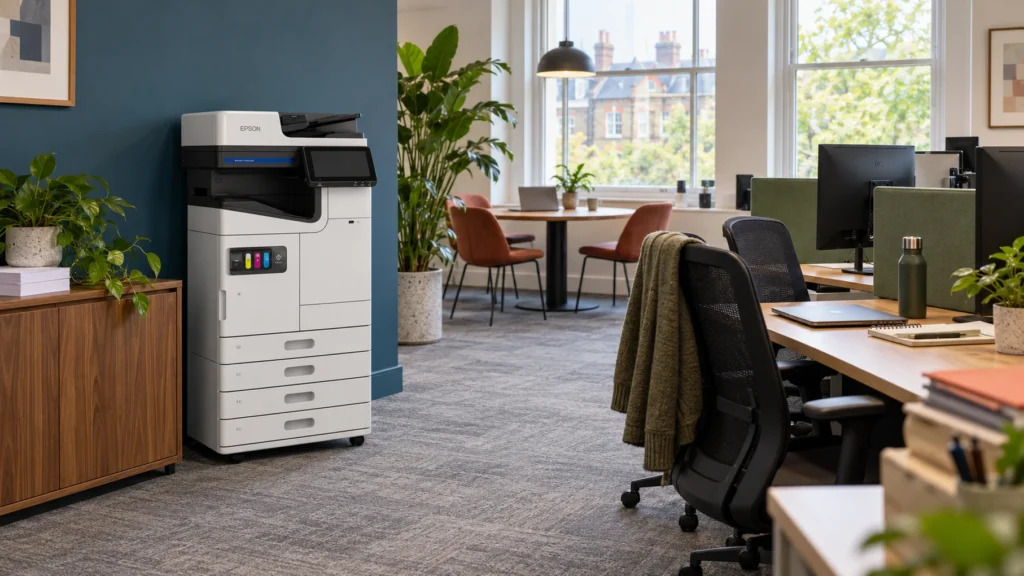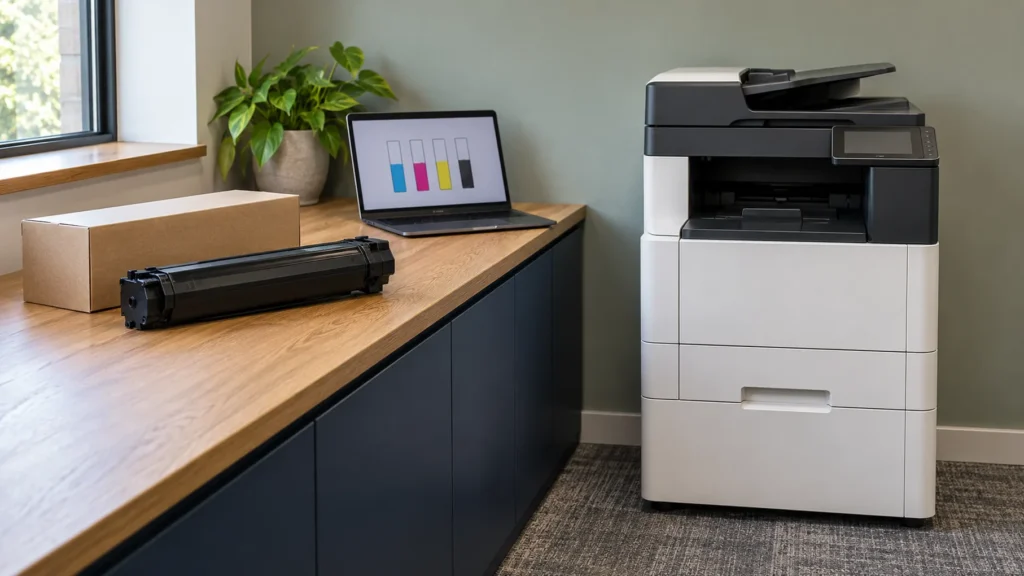
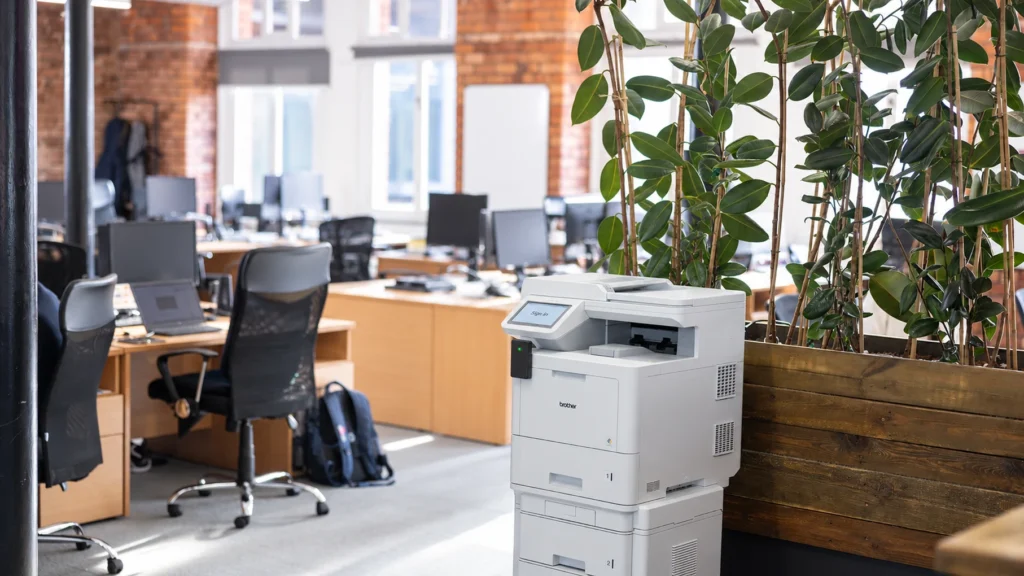
A payslip left on the printer. A pupil's record forgotten in the staff room tray. A contract picked up by someone collecting their own pages. Most offices have seen something like this, and secure print management exists to stop it.
Secure print management is the software and settings that control who can print, hold each job until its owner proves who they are at the device, and record what was printed. It usually arrives as part of a managed print service, and it works on the printers and photocopiers you already have, as long as they can run the release software.
This guide explains how release works, which method suits your team and how to switch it on without disrupting anyone's day.
Key takeaways
- Secure release holds every job until its owner signs in at the printer, so nothing sits in the tray.
- Staff can release with an ID card, a PIN code or a phone app, and you can mix methods.
- Uncollected jobs are deleted after a set time, which saves paper as well as risk.
- Find-me printing builds on secure release: collect your job at whichever printer is nearest.
- Set-up is mostly software and training; card readers are the main hardware question.
What does secure print management cover?
Secure print management covers three things: who can use each printer, what happens to a job between sending and printing, and the record of who printed what. Staff sign in, every job waits in a held queue until its owner collects it, and the software logs each page against a name, a device and a time.
The first part is sign-in. Each person is known to the system, often through the account they already use on their computer, which lets the software set rules per person or department, such as mono by default.
The second part is the hold, which the next section explains. The third is the audit trail. Because every job is tied to a person, you can see who printed a document, on which device and when. Our guide to what print management software does explains the products that provide all three, and how they differ.
How does secure print release work, step by step?
Secure print release holds each print job in a queue until its owner signs in at a printer. The job only prints once the person who sent it is standing at the machine, so confidential pages never wait in a tray. Jobs that nobody collects are deleted after a set time and never print.
- Print as normal. The user picks one shared queue from the usual print dialogue, rather than choosing a particular machine.
- The job waits. It sits in a held queue on a server, in the cloud or on the device itself, depending on the product.
- Walk to a printer. With find-me printing switched on, this can be any enabled machine, not just the nearest one to their desk.
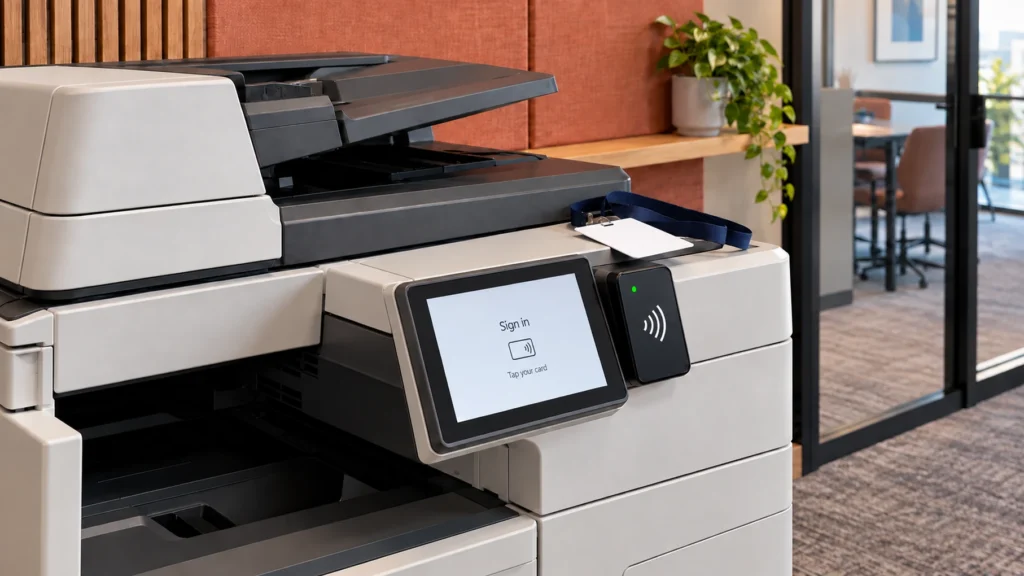
- Prove who you are. A card tap, a PIN code or a phone app tells the printer whose jobs to show.
- Collect the pages. The job prints. Anything left unreleased is removed when the timeout passes.
The release step also gives people a second chance. PaperCut's documentation notes that users can change a job at the printer before it prints, for example switching it to double-sided or to mono. Cloud products such as PaperCut Hive also let people release at the machine, on a computer or from a phone.
Card, PIN or phone: which release method suits your office?
Staff release jobs with an ID card, a PIN code or a phone app, and the best choice is usually the one that matches what staff already carry. A card suits a building with door-entry passes, a PIN suits small teams, and an app suits people who move between sites.
An ID card makes release a single tap: staff use the card they already carry for the door. The catch is hardware: each printer needs a card reader that works with your cards, and older machines may lack the panel or reader that sign-in needs.
PIN codes need no extra hardware. They are slower than a tap and can be shared, but they are a sensible start for a small office or as a backup for anyone who forgets their card.
Phone release works without touching the printer at all. In PaperCut's apps, the user scans a QR code label or an NFC sticker on the device, or types the printer's code. Tungsten Printix releases jobs from its app, an ID badge or a code. PaperCut's list option, where people pick a printer in the app before they reach it, is one of its less secure methods, because someone could choose the wrong printer.
| Method | How staff release a job | What it needs | Suits |
|---|---|---|---|
| ID card or badge | Tap the card on the reader | A card reader on each printer | Staff who already carry door passes |
| PIN or code | Type a short code on the screen | The release app on the printer | Small teams, and as a backup |
| Phone scan | Scan the printer's QR code or NFC tag | The app and a label on each printer | Hybrid staff and shared desks |
| Pick from a list | Choose a printer in the app | The app only | Large jobs, though less secure |
You can mix methods. For example, you might run cards for most staff, a PIN for visitors and temporary staff, and the app for people who work across sites.
Where does find-me printing fit?
Find-me printing, which some suppliers call Follow Me printing, builds on secure release. Because the job waits in a shared queue rather than on one machine, the user can collect it at whichever enabled printer is most convenient. If the nearest device is busy or out of paper, they walk to the next one and release it there.
It is just as secure: the job still only reaches the person who sent it, or someone they have chosen to share it with. Our earlier article on what find-me printing is and how it works covers the day-to-day benefits in more detail.
What does secure print release save?
Secure release saves paper and toner by stopping jobs that nobody collects, and it lowers the risk of a data breach from pages left in a tray. In one Insight customer's estate, introducing secure release cut print waste by around 15%, alongside the other savings a managed print service brings.
The paper saving is simple. When a job has to be released, the ones people print by mistake, send twice or forget about are never printed. The same release screen nudges people towards cheaper options: mono costs around a tenth as much as colour, as our print management page explains.
Quocirca's 2026 print security research, published in July 2026, found that 67% of organisations surveyed had a print-related data loss in the past year, up from 56% in 2025. A held job cannot be picked up by the wrong person, because it does not exist on paper until its owner is at the machine.
If you host your own systems, PaperCut MF gives you secure release, sign-in and reporting on your own server or private cloud.
Sources: Insight Systems print management page, Oct 2026; PaperCut Hive and Pocket documentation; Quocirca's 2026 print security research, a survey of 400 IT decision-makers in the UK, France, Germany and the US, published 28 Jul 2026.
How to set it up in five steps
Setting up secure release is mostly a software and training job, and your printers may already support it. This order keeps disruption low.
- Map your fleet. List every printer and copier, where it sits and whether it can run release software. Our free print audit does this for you and shows where print is being wasted.
- Choose where the software runs. A self-hosted product runs on your own server; a cloud product needs no print server at all.
- Choose the release methods. Match them to what staff carry: door cards, a PIN, a phone, or a mix.
- Set the rules and the timeout. Decide how long uncollected jobs wait before deletion. PaperCut's own guidance says many organisations choose 8 hours, within a range of 30 minutes to 3 days.
- Train the team. A short walk-through at the printer helps the new habit stick.
When we install secure release, we switch on the rules you agreed and train your staff on release and scanning. Controls only save money if people use them, so training matters as much as the software.
Common mistakes to avoid
The most common mistake is switching on release at some printers and not others. People quickly learn which machines print straight away and send everything there, which leaves the most sensitive work on the least protected device. Release works best as a rule for the whole fleet.
The second is a timeout that is too long, so stale jobs come out when someone releases today's printing. A working-day timeout is usually enough.
Shared logins are the third. A single office PIN puts every page against the same name, which defeats the audit trail, so give each person their own.
Finally, remember the scanner and the copier. Secure print management covers more than printing, and a device that can scan to any email address is another route for data to leave the building. The ICO's guide to data security says the security principle covers every part of how you handle personal data, including physical measures and hard-copy records. Regulated firms will find more in our guide to secure printing for finance and legal firms.
Is secure release right for your office?
If more than a handful of people share a printer, or anyone prints personal or commercial information, secure release is worth having. It costs staff a few seconds at the machine and closes one of the easiest ways for printed data to go astray. An office with one printer and one or two people can usually manage without it.
The simplest next step is to see it working on the type of printer you already have. Talk to our team and we will show you how release would work in your office.
Frequently asked questions
No, though they are closely linked. Secure print release holds a job until its owner signs in at the printer. Find-me printing builds on that: because the job waits in a shared queue rather than on one machine, the owner can collect it at any enabled printer on the network. PaperCut offers both, and find-me printing only works when secure release is switched on. Both protect confidential pages in the same way.
Yes, with products that offer a release app. In PaperCut's apps you scan a QR code label or an NFC sticker on the printer, or type its code, and your job prints. Tungsten Printix releases jobs from its app as well as from an ID badge or a code. Phone release suits people who move between sites or desks, and it means nobody has to touch the printer's screen.
They are deleted from the queue after a set time and never print. The administrator chooses the timeout. In PaperCut Hive and Pocket it can run from 30 minutes to 3 days, and PaperCut says many organisations choose 8 hours. Deleting stale jobs saves paper and toner, and it stops an old document coming out by surprise when someone releases today's printing.
Yes. UK GDPR expects you to protect personal data in every form, including paper, and a page left in a printer tray is an easy way for it to reach the wrong person. Secure release stops that by holding each job until its owner is at the machine. The audit trail also shows who printed what, where and when, which helps if you ever need to investigate an incident.
We run free demonstrations of PaperCut and Tungsten Printix and can show you how release would work on the machines you already have.
Talk to Us About Secure Printing